How to Get the Orange and Teal Look on Drone Footage
The classic Hollywood color grade works beautifully on drone footage. Here is exactly how to create the orange and teal look step by step.
The orange and teal color grade uses complementary colors to create cinematic depth. In DaVinci Resolve, push shadows toward teal using the Lift wheel and highlights toward orange using Gain on a separate creative node. Keep the effect subtle and always check skin tones separately.
Orange and teal is the most recognizable color grade in film. Walk into any movie theater and you will see it: warm orange highlights against cool teal shadows. The complementary colors create visual separation and depth that makes footage feel instantly cinematic. Here is how to create this look on your drone footage.
Why Orange and Teal Works
Orange and teal sit opposite each other on the color wheel. This complementary relationship creates natural contrast. When you push shadows toward teal and highlights toward orange, you create color separation that draws the viewer’s eye to the subject.
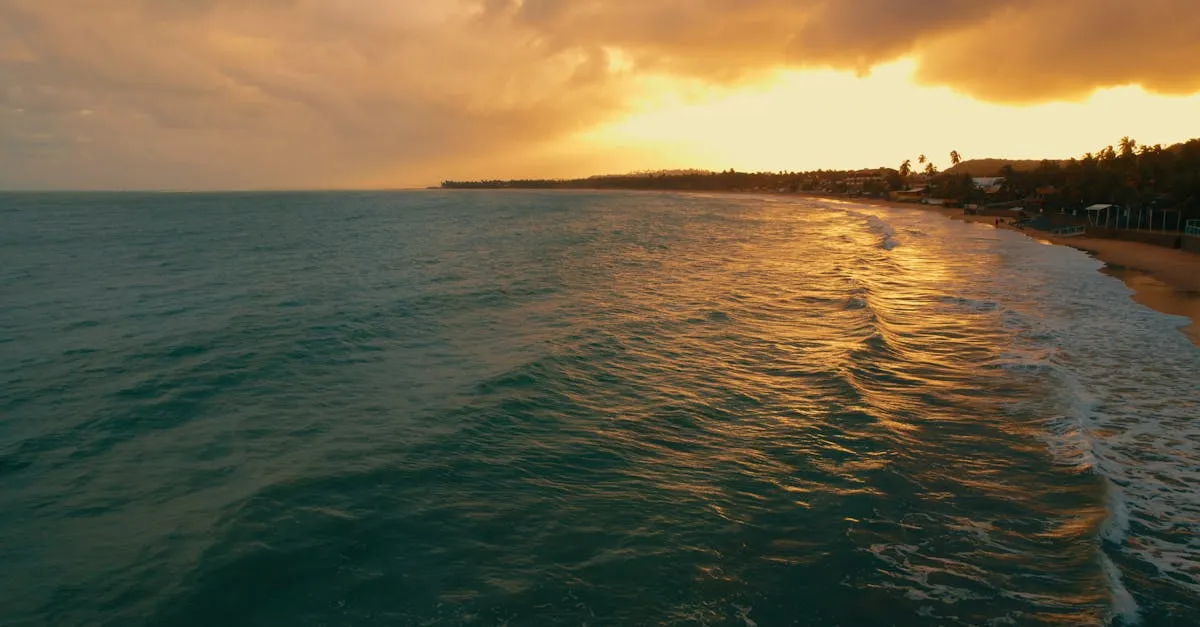
For drone footage specifically, this look works beautifully on golden hour flights, urban cityscapes, and landscape shots where warm sunlight meets cool shadows.
Step-by-Step in DaVinci Resolve
-
Start with corrected footage. Your D-Log footage should be converted to Rec.709 and properly exposed before you add any creative grade.
-
Add a creative node. Create a new serial node after your correction node. This isolates your creative look from your technical base.
-
Push shadows toward teal. On the Color page, grab the shadow wheel (Lift) and pull it toward the teal/blue area. Watch the scopes and keep the shift moderate. You want a subtle cool tone, not a blue filter.
-
Push highlights toward orange. Grab the highlight wheel (Gain) and push it toward warm orange. Again, moderation matters. Skin tones should feel warm, not radioactive.
-
Check skin tones. If you have people in your shot, use a qualifier to isolate skin tones and pull back the orange slightly so faces look natural.
-
Fine-tune with curves. Open the blue curve and lift the bottom portion slightly to reinforce teal in shadows. Open the red curve and pull down the top slightly if highlights feel too hot.
-
Adjust saturation globally. The teal/orange shift can make colors feel oversaturated. Pull global saturation down 5-10% if things look artificial.
Common Mistakes
Going too heavy. If your footage looks like a movie poster, you went too far. Pull everything back 30% and see how it sits. Professional orange and teal is subtle.
Ignoring skin tones. The orange push affects everything, including people. Skin that looks overly orange ruins the grade. Always check and correct skin tones separately.
Applying to the wrong footage. Orange and teal looks forced on overcast, blue-toned footage. It shines on warm, golden hour material where you are enhancing existing warmth rather than faking it.
When to Use This Look
- Golden hour flights over landscapes
- Urban cityscapes at dusk
- Travel footage with warm lighting
- Real estate exteriors in warm light
- Any footage where you want a cinematic, polished feel
When to Skip It
- Overcast or stormy weather (the warmth looks fake)
- Industrial or architectural documentation (colors should be accurate)
- Footage intended for stock (buyers want neutral grades)
Frequently Asked Questions
Why does orange and teal work so well? Orange and teal sit opposite on the color wheel, creating natural contrast and color separation that draws the eye and adds cinematic depth.
What footage works best? Golden hour flights, urban cityscapes at dusk, travel footage with warm lighting, and real estate exteriors. Best when enhancing existing warmth.
How to avoid unnatural skin tones? Use a qualifier to isolate skin tones and pull back orange slightly so faces look natural. The orange push affects everything.
Biggest mistake with orange and teal? Going too heavy. If footage looks like a movie poster, pull everything back 30%. Professional grading is subtle.
Apply to stock footage? No. Stock buyers want neutral grades they can manipulate themselves. Save creative looks for client deliverables.
Why use a separate node? Isolating the creative look keeps it distinct from technical correction, making it easy to adjust or disable without affecting exposure and color balance.
For the complete color grading workflow, check out the best free drone LUTs and our Drone Color Grading and Editing Masterclass.