Color Correction vs Color Grading
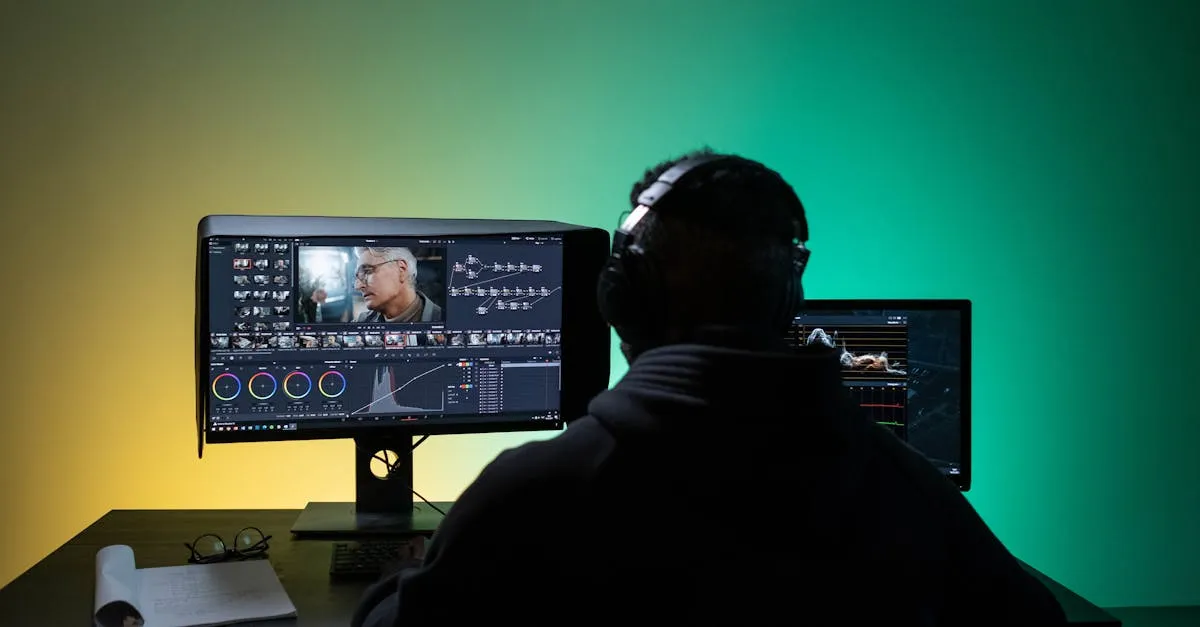
Most people use these terms interchangeably. That is a mistake that will mess up your workflow every single time.
Color correction and color grading are two completely different processes with two completely different goals. Understanding the difference separates amateurs from people who actually get paid for this work.
What is Color Correction?
Color correction is problem-solving. Nothing more.
You are fixing what went wrong during the shoot. Your drone footage came out too blue because you forgot to switch white balance from tungsten to daylight. That is a correction problem. Your sunset shot looks flat because the clouds threw off your exposure. Also a correction problem.
The goal of correction is simple: make your footage look accurate. When you are done correcting, your footage should look like what your eyes actually saw when you were standing there with the controller.
Common correction tasks:
- White balance adjustment: Removing that orange cast from shooting in warm light, or the blue cast from open shade at noon
- Exposure fixes: Lifting crushed shadows where you cannot see detail in the treeline, or pulling back blown highlights on that mountain peak
- Contrast correction: Fixing footage that looks washed out because your flat profile removed too much contrast
- Color cast removal: Getting rid of unwanted color shifts from atmospheric haze, reflections, or shooting near colored surfaces
Think of correction like developing a RAW photo. You are just getting it back to neutral.
What is Color Grading?
Color grading is where you stop being a technician and start being an artist.
This is the creative phase where you make intentional decisions about mood, style, and visual storytelling. You are not fixing problems anymore. You are making choices.
Grading is why that real estate footage feels warm and inviting while that industrial site footage feels cold and clinical. It is why your travel film looks like it belongs on a streaming service instead of a random YouTube channel.
Common grading tasks:
- Pushing color temperature for mood: Making a golden hour shot even warmer to feel nostalgic, or cooling down a winter scene to feel isolating
- Applying LUTs and looks: Using lookup tables to establish a consistent visual style across your entire project
- Isolating colors with qualifiers: Making that red barn pop while desaturating everything else in the frame
- Creating color contrasts: Teal shadows against orange highlights, the classic cinematic look
Do not skip straight to grading. Slapping a cinematic LUT onto uncorrected footage is a recipe for bad results. LUTs are built for properly corrected footage. Feed them bad material, you get bad results.
The Critical Rule: Order Matters
Correction always comes before grading. Every single time.
Here is why: grading builds on top of corrected footage. When you push creative colors, you need to know your starting point is neutral and accurate. If your shadows are already crushed from bad exposure, that moody grade you are applying will just make them black holes. If your white balance is off, your creative color choices will compound the error.
Fix first. Create second. This is not optional workflow advice. It is how the math actually works.
Software-Specific Workflows
The exact tools differ depending on your software, but the principle stays the same.
In DaVinci Resolve, start with the primary color wheels in the Color page. Use Lift (shadows), Gamma (midtones), and Gain (highlights) to neutralize your footage. Get it looking clean and accurate. Once that is done, add nodes downstream for your creative grading. Each node is a new creative decision stacked on top of your corrected base.
In Premiere Pro, hit the Basic Correction tab in Lumetri Color first. Fix your temperature, tint, exposure, contrast, and saturation there. Once your footage looks neutral, move over to the Creative tab for LUTs and looks, then use the Color Wheels section for fine-tuning your grade.
In Final Cut Pro, use the Color Inspector. Start with the Exposure tab to fix highlights, shadows, and brightness. Then move to the Color tab to correct white balance. Once the footage is neutral, apply your creative looks using the Color Board or third-party LUT plugins.
Apply your color corrections to the entire original clip BEFORE you start cutting it into pieces. If you correct after editing, every cut from the same clip might look slightly different because you are matching by eye instead of having one consistent base. Fix the whole clip, then slice it up.
A Practical Example
Let’s say you filmed a coastal drone shot at 2pm on a partly cloudy day. Here is how the two-step process actually looks:
Correction phase: The footage looks cool and slightly flat. You warm up the white balance to remove the blue cast from open sky. You lift the shadows to recover detail in the dark rocks. You add a touch of contrast to restore the punch that got lost in the flat profile. Now the footage looks like you remember the scene, accurate, clean, neutral.
Grading phase: You decide this shot needs to feel peaceful and dreamy for the travel film you are cutting. You push the warmth a bit further than accurate. You add a subtle teal shift to the shadows. You soften the highlights slightly. Now the footage does not look like reality anymore. It looks like the feeling you want to convey.
Correction made it right. Grading made it art.
Why Beginners Get This Wrong
The mistake is almost always impatience. Correction is tedious. There is nothing exciting about neutralizing white balance or recovering shadow detail. Grading is fun because you get to see immediate creative results.
But skipping correction is like trying to paint a house without priming the walls first. The color goes on, but it never looks right, and you cannot figure out why.
Build the habit now. Correct first, grade second. Your footage will immediately look more professional than most of what you see online, because most people are still making this fundamental error.