Creative Grading: Building Your Look
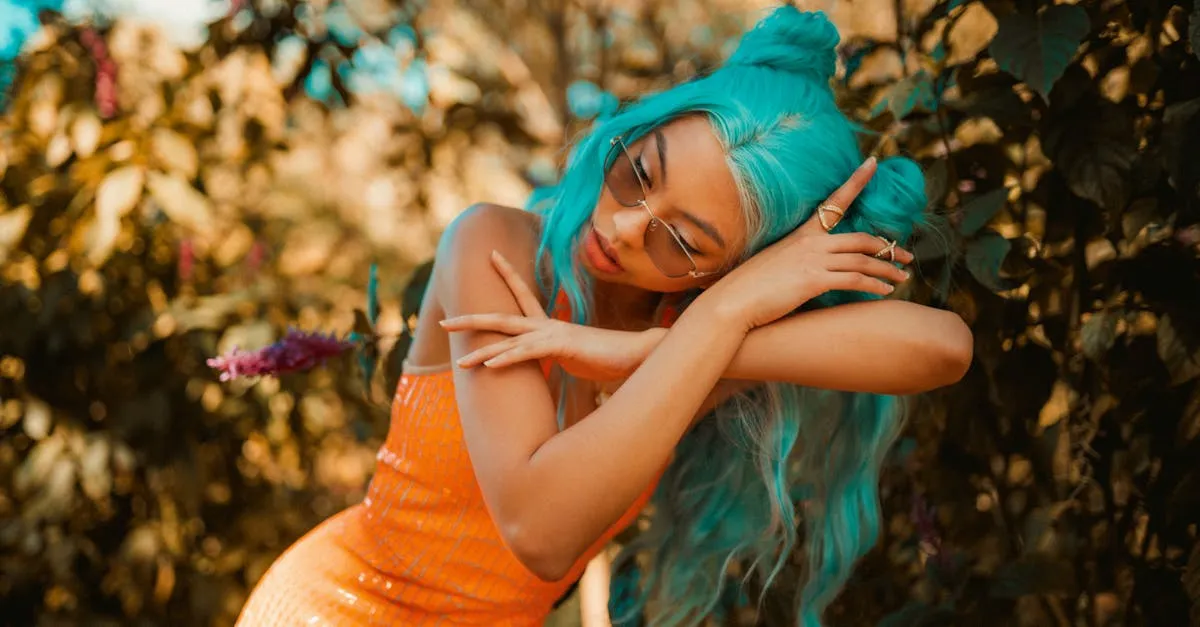
Creative grading is the part most people think of when they hear “color grading.” This is where you stop fixing problems and start making choices. You are adding style, mood, and a point of view to your footage.
Everything up to this point has been technical. Creative grading is artistic. And that means there is no single right answer, only choices that serve your story better than others.
Your Creative Toolkit
Four main tools do the heavy lifting in creative grading:
Color Wheels give you broad, intuitive control. Pull the shadow wheel toward blue for cooler shadows. Push the highlight wheel toward orange for warmer highlights. The interaction between these two adjustments creates the foundation of most popular looks.
Curves offer precision that wheels cannot match. RGB curves let you target specific tonal ranges within individual color channels. You can add blue to just the deep shadows while leaving midtones untouched. You can pull red out of highlights without affecting anything below 70% brightness.
Qualifiers isolate colors. You select a specific hue range (all the blues in your sky) and adjust only those pixels. The rest of the image stays untouched.
Power Windows isolate regions. Draw a shape over part of the frame. Want to darken just the sky without affecting the foreground? Draw a window across the top and pull down exposure.
Do not try to use all four tools on every shot. Start with wheels for broad strokes, then reach for curves, qualifiers, or windows only when you need something more specific.
Popular Drone Looks
Certain looks show up repeatedly in drone footage because they work well with aerial perspectives.
Teal and Orange is the Hollywood standard. Human skin sits in the orange range, and teal sits opposite on the color wheel. Push shadows toward teal and highlights toward orange to create complementary contrast that makes subjects pop.
Warm Sunset builds on golden hour footage by pushing orange and yellow into highlights and midtones. The key is restraint. You are enhancing what is already there, not faking a sunset. Pull the highlight wheel toward orange/yellow, add warmth to midtones, leave shadows neutral.
Cool Moody shifts everything toward blue and pulls down saturation. Good for dramatic landscapes, storm footage, or anything that should feel isolated. Push the image toward blue, drop saturation 15-25%, crush the blacks slightly.
Film Emulation mimics actual film stock. Lift the blacks so the darkest parts are not pure black. Mute the highlights so bright areas roll off gradually. Desaturate slightly, especially greens. The result feels nostalgic rather than digital.
Clean Natural is the hardest to execute because it is supposed to look like you did nothing. Enhance contrast subtly, fine-tune white balance, add just enough saturation to make colors feel present without looking pushed.
Building Teal and Orange Step by Step
Start with your corrected footage. Open the color wheels. Pull the shadow wheel toward teal/blue. Just enough to see a clear shift in the darkest parts of the frame. Push the highlight wheel toward orange/warm. Moderation.
Check your skin tones if you have people in the shot. The orange push in highlights might have made them look too ruddy. Use a qualifier to isolate skin tones, then pull the saturation back slightly within that selection. Skin should feel warm but not radioactive.
Switch to curves for fine-tuning. On the blue curve, lift the bottom portion slightly to reinforce teal in shadows. On the red curve, pull down the top portion if highlights feel too hot.
Teal and orange is easy to overdo. If your footage starts looking like a Michael Bay movie poster, pull everything back 30% and see how it sits.
Working with Qualifiers
Qualifiers select pixels based on color properties. In DaVinci Resolve, you see hue, saturation, and luminance controls. Click the eyedropper on a color you want to isolate, then refine the selection.
Say you want to make the sky more dramatic without affecting the landscape. Sample the sky blue with the eyedropper. Narrow the hue range until only sky tones are selected. Tighten the saturation and luminance ranges to exclude similar colors. Now push that sky toward deeper blue or darken it without touching anything else.
The common mistake is making selections too loose. Color will bleed into areas you did not intend. Tighten your selection until it is clean, then feather the edges slightly to blend the adjustment.
Working with Power Windows
Power windows are shape-based selections. Draw rectangles, circles, polygons, or bezier curves over any part of the frame.
A classic drone move: darken an overly bright sky by drawing a gradient window across the top third of the frame. Pull exposure down until the sky matches the foreground. Soften the edge so the transition is invisible.
Another common use: brighten your subject. Draw a window around the main focal point. Raise exposure slightly. The eye naturally goes to the brightest part of the frame, so this subtle adjustment directs attention without being obvious.
Track your windows if the drone is moving. Resolve’s tracker follows points through the frame, keeping your selection locked on target as perspective shifts.
Node Structure in DaVinci Resolve
If you are using Resolve, your node tree should reflect a logical progression. Each creative choice gets its own node:
- Node 1: CST (Color Space Transform) if needed
- Node 2: Primary corrections (exposure, contrast, white balance)
- Node 3: Creative look (your style)
- Node 4: Secondaries (qualifiers, power windows)
This separation matters. If you decide the teal and orange is too strong, disable Node 3 without losing your corrections.
The Final Check
Toggle between your graded and ungraded footage frequently. If the grade is the first thing you notice when you look at the image, it is too heavy. The best grades feel inevitable, like the footage was always supposed to look that way.
Sleep on it. Grades that feel perfect at midnight often feel heavy the next morning. Come back with fresh eyes before you deliver.